Common symptoms
- Custom icons have returned to Rhino defaults.
- Some buttons are blank, duplicated, or use the wrong icon.
- The icon pack appears in one shortcut or scheme but not another.
- Toolbar layout remains correct, but icon resources have changed.
- Rhino starts with a different theme after an update or shortcut change.
Step 1
Back up the current state
Close Rhino and copy %AppData%\McNeel\Rhinoceros\8.0\settings to a new dated folder. Do not overwrite the backup you made before installation.
If you do not have an earlier backup, follow the Rhino 8 UI backup checklist now.
Step 2
Confirm which scheme Rhino started
Rhino can store different settings for different scheme names. A desktop shortcut containing a /scheme="Name" parameter opens that scheme’s settings rather than the default scheme.
Check the shortcut you used before and after the update. McNeel’s Starting Rhino documentation explains how scheme-specific settings are stored.
Step 3
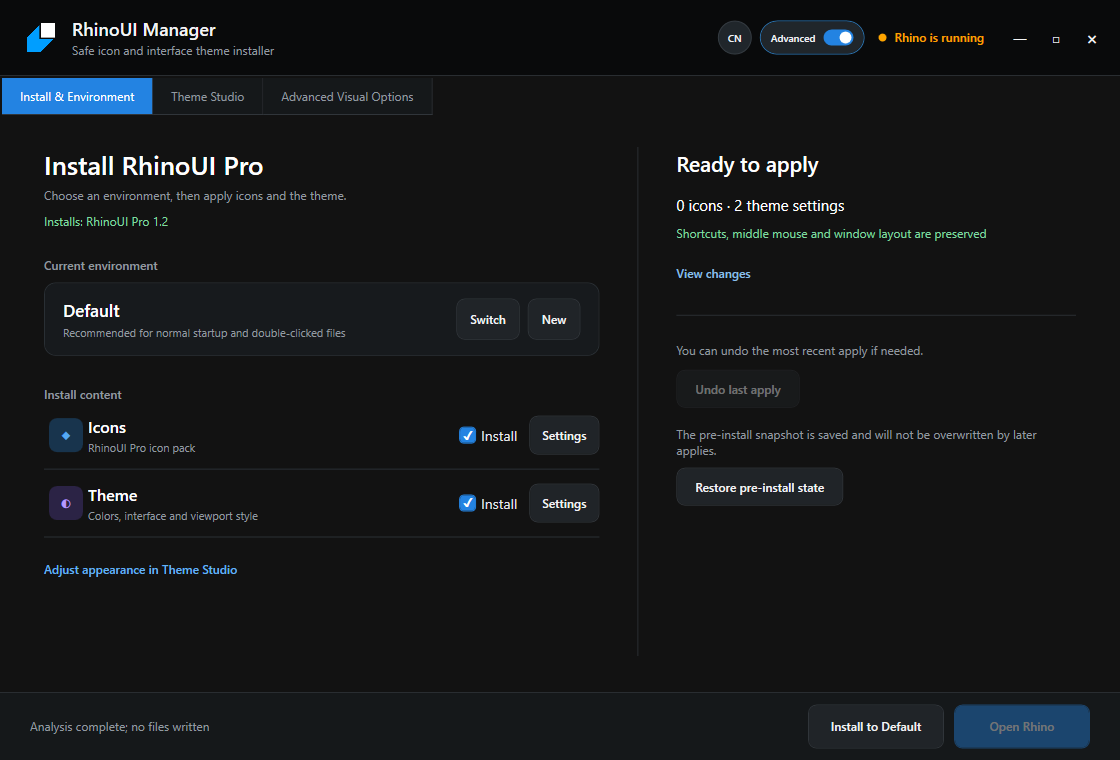
Open RhinoUI Manager with Rhino closed
Run the Manager included with your purchased package and select the same environment you normally use. For standard Rhino launches, this is usually Default. The analysis will show whether the packaged icons or theme settings differ from the active Scheme.
Step 4
Reapply only the required categories
If the analysis detects missing theme content, enable Icons and, for Pro, Theme as needed. Review the change list and apply. Shortcuts, middle mouse, macros, toolbars, layouts, and unrelated custom icons stay disabled by default.
Step 5
Separate toolbar problems from icon problems
If toolbar groups, buttons, or external RUI files are also wrong, open Rhino’s Toolbars options and identify whether the affected toolbar is the embedded default or a linked external RUI.
Rhino’s official documentation notes that deleting an associated toolbar XML restores the original toolbar content from the RUI file. That also discards stored toolbar edits, so use it only after backing up and only when restoring the original toolbar is the intended result. See Toolbars Options.
Step 6
Use Reset only as a last resort
Rhino’s Reset command can restore the default window layout, remove toolbar customizations, reset application settings, or perform a factory reset. These choices affect much more than icons.
Read each option carefully and save your settings first. McNeel states that a factory reset creates an 8.0backup <date and time> folder, but you should still keep your own independent backup. See the official Reset command documentation.
When to contact support
Ask for help when the active environment is correct, Manager reports no pending icon change, and restarting Rhino still shows blank or incorrect icons. Include:
- Your Rhino 8 service release
- Your Windows version
- The environment or shortcut used
- A screenshot of the affected toolbar
- Whether the Default environment displays correctly
- The Manager and theme versions shown in your package
Do not send purchase files, license information, or a complete settings archive publicly.