Extract
Extract the complete Gumroad ZIP into a normal folder and keep every included file together.
RhinoUI Manager 1.0 · Windows x64
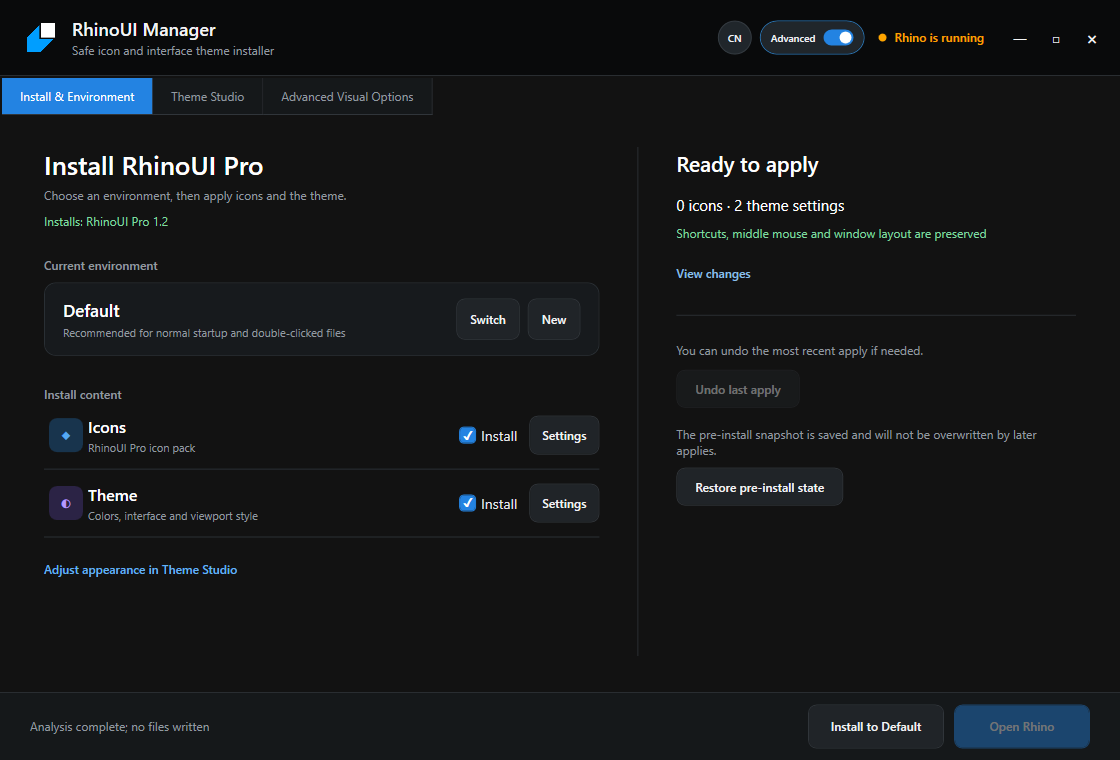
Choose where to install, preview what will change, keep your shortcuts and workspace behavior, and return to the state from before installation whenever needed.
Normal user workflow
The paid RhinoUI download contains Manager and the selected production theme in one complete ZIP. The public Manager does not include the commercial icon artwork.
Extract the complete Gumroad ZIP into a normal folder and keep every included file together.
Close all Rhino windows before installing, updating, or restoring the interface.
Run Manager and select Default unless you intentionally use a separate Rhino environment.
Inspect the preview, apply the selected categories, then open Rhino and verify the result.
Safety model
RhinoUI Manager separates visual changes from the personal controls and workspace arrangements you already rely on.
A pre-install snapshot is created before the first installation and kept separately from later applies.
Shortcuts, middle mouse, macros, toolbars, layouts, and unrelated icons remain untouched by default.
Undo the most recent apply or restore the complete pre-install state after closing Rhino.
Theme Studio
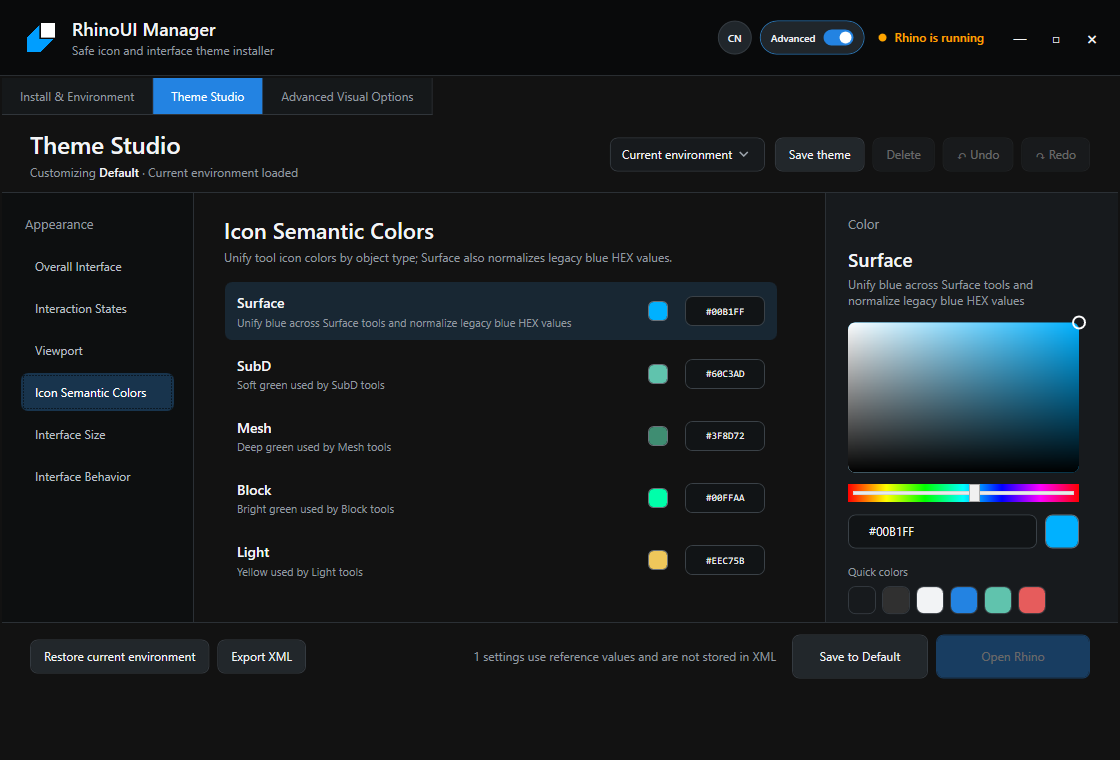
Adjust interface surfaces, interaction states, viewport colors, semantic icon colors, size, and selected behavior without hunting through multiple settings files.
Requirements & notes
Windows 10 or 11 x64, Rhino 8, and the .NET 9 Desktop Runtime x64.
Rhino can update interface files while running. Closing it avoids conflicts while Manager installs or restores your theme.
The current binary is not code-signed. Use only the copy included with your official Gumroad package and do not separate the EXE from its supporting files.
No. Manager is the normal installer and theme customizer. Rhino Icon Editor is a separate open-source authoring application for creating and editing SVG icons.
Included with RhinoUI
RhinoUI Manager is included with the complete $9.99 package. Payment and automatic file delivery remain on Gumroad.